Orders and customers
Quotes, payments, and your rate card
4 minute read
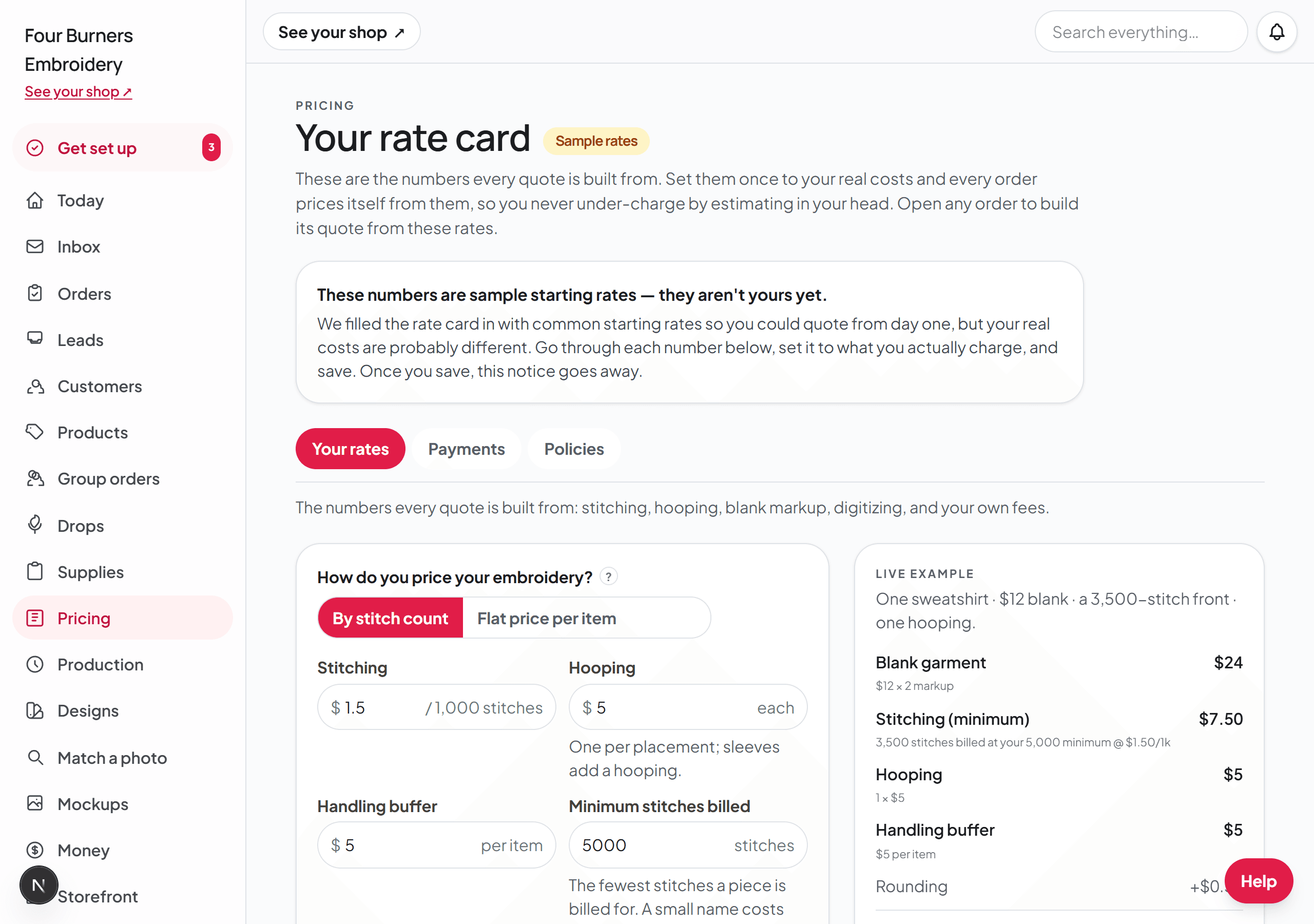
Your rate card does the math
On the Pricing page, set your numbers once: what you charge per thousand stitches, per hooping, for digitizing, and your minimum. The card also holds the numbers embroiderers forget to charge for — a handling buffer, a floor on how few stitches you will bill, a markup on the blank, and separate fees for appliqué and 3D puff, the two techniques that take real extra work. Every quote after that is built from the same card, so you never guess what you charged last time and never accidentally work for free.
Building and sending a quote
- 1Open the order and tap the quote builder. It arrives pre-filled from the order itself: the quantity, the placements, and an honest stitch estimate.
- 2Adjust anything you want. Every line is editable, and the total updates as you type.
- 3Save the quote and send the customer their quote link. They see the itemized lines and accept with one tap. The acceptance is stamped on the order.
Quotes with more than one item
A business order rarely comes as one garment. Two tees, a polo, and six caps is normal — and that is one quote, not four. In the quote builder, tap Add another item to price each garment on its own lines: its own blank, its own stitching, its own quantity. The customer sees one itemized quote and accepts the whole thing with one tap.
One thing to know while this is new: the order page's spec section still describes the first item, so keep the full list in the order's notes or the conversation until you build the quote. The quote itself carries every item.
Pricing an item yourself
The rate card prices stitching. It cannot price a DTF print, a screen print, or a vinyl tee, because those are not measured in stitches. So any item on a quote can be priced by hand instead: flip Price this item myself, type what you charge for the work, and the rate-card lines for that item step aside. The blank, the quantity, and the rest of the quote keep working the way they always did.
Name the work while you are there. The line next to the price is what your customer reads on the quote — type DTF print or Screen print and that is what the quote says, instead of the word Embroidery. Every other item on the same quote can still be priced from your rate card; the choice is per item, not per quote.
You only flip that switch by hand for a one-off. If the product itself says it is printed or engraved — set under How this product is made in the product editor — its quotes open with Price this item myself already on and the work already named, so you are never asked for a stitch count on something that is never stitched. The price is left blank on purpose, because only you know what that job is worth.
Wholesale and special pricing
Some customers have a deal — the salon that gets 10 percent off, the school that is tax exempt. The quote builder has a section called Wholesale and special pricing for exactly this. Give the quote a discount as a percent or a flat amount, label it so the quote says why (Wholesale, Team discount), and if you charge sales tax, mark the customer tax exempt on this quote — for a school, a nonprofit, or a reseller with a certificate. The discount shows as its own labeled line, so the quote explains itself, and your rate card never changes.
Getting paid
You choose how you take money. If you connect card payments, customers pay right on Broidry and Broidry marks the order paid. If you prefer Venmo, cash, or check, the customer reports the payment and it lands on the order for you to confirm, so the order always shows what has been paid and what is still owed.
Deposits, and why you might not want one
By default, a customer pays in full before you stitch. That is the right rule for custom work sold to a regular person, and it is worth saying out loud on your shop page: once a piece has someone's name on it, you cannot sell it to anyone else.
Businesses are the exception. A school, a team, a salon, or a shop that orders twenty polos is used to putting money down and paying the rest on delivery, and asking a business for the whole amount up front can read as distrust. So Broidry lets you set a deposit: a percentage the customer pays to get the order into production, with the balance due before it leaves your hands.
You set the deposit on the Pricing page, under the Payments tab, in the card called How buyers pay. Two settings decide how it works. The first is the percentage — anything from 0, which means full payment up front, to 90. The second is who it applies to: every customer, or only the specific customers you have marked for it.
Marking specific customers is the setting most shops want. You keep full payment up front as your normal rule, and then on the Customers page you open a business account and allow that one customer to start on a deposit. Everyone else still pays in full, and you never have to remember which rule applies to whom, because the order form applies it for you.