Your shop page
Set up your shop page
4 minute read
Your shop page is the one link you share everywhere. The Storefront tab in your dashboard controls all of it, split into five smaller tabs so nothing is buried.
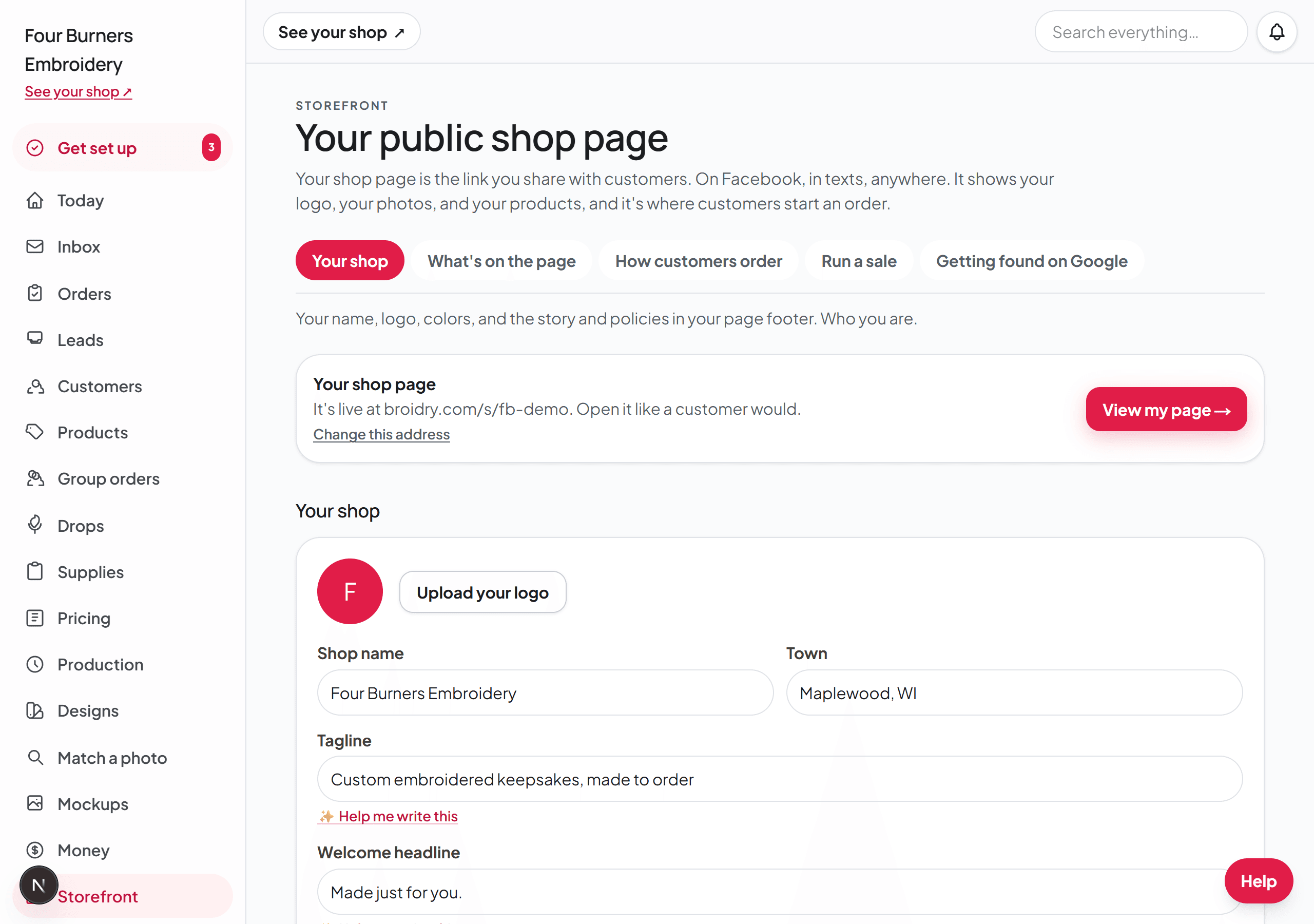
The five tabs
Your shop holds your name, your town, your welcome words, your logo, and your photo — plus your look (the theme) and the page layout, which decides which sections appear and in what order. Empty sections never show, so you cannot end up with a bare spot. Shops that show a real face and a real town win more orders from strangers. This tab is also where your web address lives: the card for moving your shop to your own domain, and the card for embedding your shop inside a website you already have — one switch and a snippet you paste into Shopify, Squarespace, or WordPress.
What's on the page holds the content itself: your gallery photos, your story, reviews, the banner strip, and your pickup and shipping details.
How customers order controls the order form itself. Turn steps on or off to match how you work. The font choices themselves live with your fonts on the Designs page, under Fonts — this tab points you there.
Run a sale holds shop-wide sales, your announcement bar, and the seasonal dress-up — a one-tap seasonal color for your page.
Getting found on Google holds the basics that help your page show up in search.
Change your web address
Your web address is built from the shop name you typed when you signed up. Most new shops settle on their real business name a little later than that, so you can move it.
Open the Storefront tab in your dashboard. The first card at the top is called Your shop page, and it shows the address your shop sits at. Under that address is Change this address. Choose it, type the name you want, and save.
Spaces and capital letters turn into dashes and lowercase when you save, so Sunshine and Bliss Embroidery becomes sunshine-and-bliss-embroidery. If another shop is already using the address you typed, Broidry says so instead of saving it.
Your old address keeps working, and it always will. A link you already texted a customer, a card you handed someone at a fair, and a QR code you already printed all still open your shop.
How customers find one product
Two things on your shop page get a customer to the right product without scrolling your whole catalog.
The first is your tags. Every tag you put on a product becomes a filter on your shop page. The page shows one row of eight tags, and those eight are the ones you have used on the most products. Every other tag sits behind a button at the end of that row that says how many more there are. So you can use as many tags as you want without making a customer scroll past all of them.
The second is the search box. It sits above your products once your shop has more than twelve of them, and it looks at every product name and every tag. Two words narrow it further than one, and the order does not matter. A search is its own web address, so a customer can send it to someone or come back to it later.
Both of these run on your own words. A product named Senior class of 2026 and tagged sweatshirt is found by someone searching senior, or sweatshirt, or both. Naming your products the way your customers say them out loud is the whole trick.
Make it look like you
Pick a theme, or let the setup helper suggest one from how you describe your shop. The Match my logo's color button pulls your logo's main color into the page. The theme carries your colors and type through every page a customer sees, including their order form and tracking pages. Add a meet-the-maker photo so customers can see the person making their piece.
The promises your listing pages make
Under the order button on every listing page, Broidry shows two short promises to your buyer. They are switches, not fixed text, and they live under What's on the page, in the box called What your listing pages promise. Check that both are actually true of your shop, because a promise you do not keep is worse than no promise at all.
The first is "Real embroidery, made to order — not printed." Leave it on if you stitch. You do not have to turn it off just because you also print: Broidry takes the promise off any listing that is not embroidery, on its own. It goes by two things — the craft you set on the listing itself, and the listing's own words, so a title with DTF, sublimation, HTV, heat transfer, vinyl, screen print, or graphic tee in it never carries the promise.
Turn the switch off only if you want the promise gone from your embroidered listings too.
The second is "You approve every detail before it's stitched." Leave it on if you send a proof or confirm the wording before you thread the machine. Turn it off if you stitch straight from the order, so you are not promising a step you do not actually do.
If you also work by hand
In that same box there is a third switch: "I do some of my work by hand." It is off by default, and while it is off, anything Broidry writes for you is checked so it can never describe machine embroidery as hand embroidered or handmade. That check exists to protect you, because calling machine work handmade is the kind of claim that costs a shop its reputation.
If you genuinely do hand embroidery, hand-finishing, or sell handmade pieces alongside your machine work, turn it on. Broidry then stops rewriting those words out of your own copy and keeps your wording as you typed it. It still will not invent a hand-work claim you did not make — turning the switch on only stops the correction, it does not start adding the words for you.